Troubleshooting Export
Session Buddy’s export feature normally allows you to select a folder to save an export file to.
In some cases, however, folder selection may be unsupported or blocked by a permission setting. When this happens, Session Buddy falls back to a file download option. Most of the time this allows export to proceed without issue, saving the export file to your preferred Downloads folder.
If you want to select a destination for your exports but it’s not offered as an option, or if you encounter a problem with the download fallback, there are a couple of things you can try to enable folder selection. Read on…
Enable file picker support
Some browsers such as Brave do not support a file picker feature by default. In these browsers, Session Buddy’s Export dialog displays a “Download” button instead of a “Save” button.
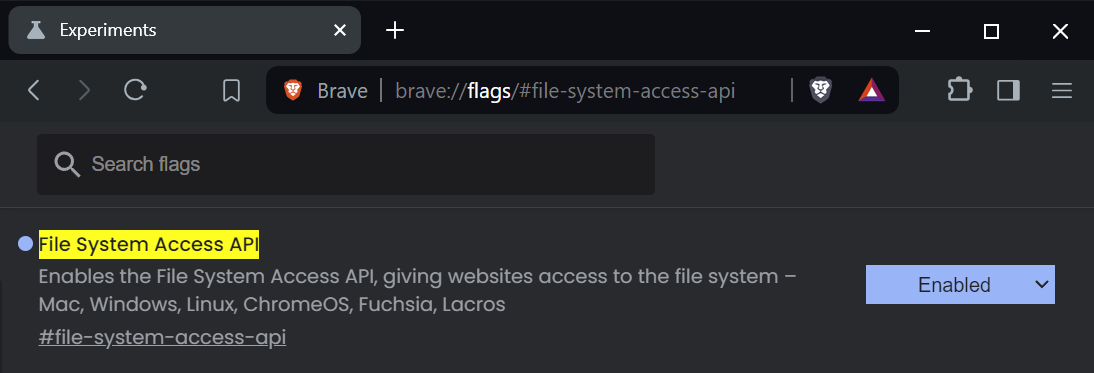
To allow folder selection in this case, you may need to enable the File System Access API. To do so, first navigate to the following URL:
chrome://flags/#file-system-access-api
Next, select “Enabled” from the dropdown of the highlighted item and restart the browser.
While Session Buddy works fine in many browsers including Brave, it is currently only officially supported for use with Chrome.
As with any Chrome flag, be sure to familiarize yourself with the implications of enabling this flag.
Allow file editing permission
In some cases, file selection may be blocked by a “File editing” permission.
When this is the case, Session Buddy will display an error after an attempt to save and present an option to download the file instead.
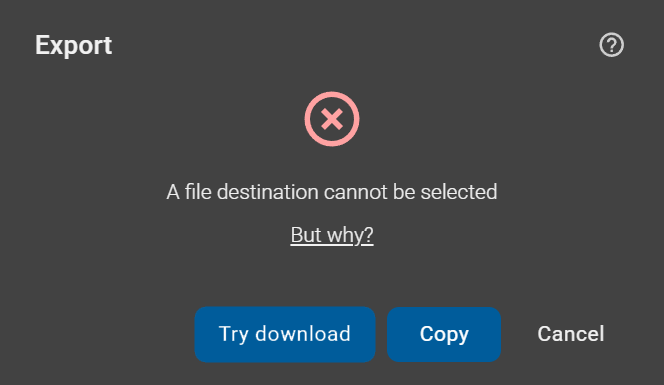
To enable folder selection in this case, you’ll need to explicitly allow the “File editing” permission.
To do this, open the web permissions page by right-clicking the Session Buddy icon, then selecting “View web permissions”.
Alternatively, copy-paste the following URL into the address bar:
chrome://settings/content/siteDetails?site=chrome-extension%3A%2F%2Fedacconmaakjimmfgnblocblbcdcpbko
Scroll down to the “File editing” line item and change the permission from “Block” to “Ask” in the dropdown. Be sure to reload Session Buddy before attempting to export again.

Sometimes this permission is locked by an enterprise policy, preventing you from changing it. If that’s the case you’ll need to contact your Google account administrator for help.